✓ Over 70% of internet speed issues can be resolved with basic troubleshooting.
✓ Wi-Fi interference is a leading cause of slow speeds in residential areas.
✓ Outdated router firmware can significantly bottleneck your connection.
✓ A single bandwidth-hogging device can impact an entire home network.
How It Works
1
Identify the Problem's Source
Before attempting fixes, determine if the issue is with your device, Wi-Fi, modem/router, or ISP. This narrows down your troubleshooting efforts significantly.
2
Perform Basic Router & Device Resets
Often, a simple power cycle of your modem, router, and connected devices can clear temporary glitches and restore optimal performance.
3
Optimize Your Wi-Fi Environment
Adjust router placement, minimize interference, and secure your network. These steps can dramatically improve wireless signal strength and stability.
4
Advanced Network & Software Checks
Dive deeper by checking for bandwidth hogs, updating drivers, and considering network hardware upgrades. These address more persistent or complex slowdowns.
Understanding the Root Causes of Slow Internet
Photo: Tima Miroshnichenko / Pexels
A sluggish internet connection can be one of the most frustrating modern inconveniences, turning simple tasks like streaming a movie or participating in a video call into a test of patience. Before you can effectively learn how to fix slow internet connection, it’s crucial to understand the myriad of factors that can contribute to this digital drag. The problem isn't always with your Internet Service Provider (ISP); often, the culprits lie closer to home, within your own network setup, devices, or even your daily habits.
One of the most common causes is an outdated or underpowered modem and router. These devices are the heart of your home network, and if they're not up to par with your subscribed speed or are simply old, they can become a significant bottleneck. Think of it like trying to pour a gallon of water through a straw – no matter how much pressure you apply, the flow will be limited by the straw's capacity. Similarly, an older router might not support newer Wi-Fi standards (like Wi-Fi 6 or 6E) or might lack the processing power to handle multiple high-bandwidth activities simultaneously. This often leads to a discrepancy between the speed you pay for and the speed you actually experience.
Another major factor is Wi-Fi interference. Your wireless signal is susceptible to disruption from a surprising number of sources. Other electronic devices in your home, such as microwaves, cordless phones, baby monitors, and even your neighbor's Wi-Fi network, operate on similar frequencies (2.4 GHz or 5 GHz) and can cause signal degradation. Physical obstacles like walls, floors, and large pieces of furniture also absorb or reflect Wi-Fi signals, weakening them as they travel. The further you are from your router, or the more obstacles between you and it, the weaker your signal, and consequently, the slower your effective internet speed. Optimizing your home network layout is often a quick win.
Network congestion, both within your home and on your ISP's end, is also a significant contributor. Within your home, multiple devices simultaneously streaming 4K video, downloading large files, or engaging in online gaming can quickly saturate your available bandwidth. On a larger scale, if many users in your area are online during peak hours (e.g., evenings), your ISP's infrastructure might become temporarily overloaded, leading to slower speeds for everyone. This is particularly true for cable internet, which is a shared medium.
Finally, software and device-specific issues can also create slowdowns. An infected computer with malware or viruses can consume bandwidth in the background. Outdated network drivers on your devices, a full browser cache, too many open tabs, or background applications updating can all impact your perceived internet speed. Even the type of browser you use or the settings within it can play a role. Understanding these potential pitfalls is the first step towards effectively addressing and resolving your slow internet woes, transforming your digital experience from frustrating to fluid.
Essential Troubleshooting Steps for Immediate Relief
Photo: Pascal 📷 / Pexels
When faced with a sluggish connection, the impulse might be to panic or immediately call your ISP. However, many common internet speed problems can be resolved with a series of simple, yet effective, troubleshooting steps. These methods are designed to address the most frequent causes of slowdowns and often provide immediate relief, helping you learn how to fix slow internet connection without needing professional help.
**1. Restart Your Modem and Router (The Classic Power Cycle):** This is the golden rule of internet troubleshooting for a reason – it works. Modems and routers, like all electronic devices, can accumulate temporary glitches, memory leaks, or get stuck in a bad state. Power cycling them clears their cache, refreshes their network connection, and allows them to re-establish a clean link with your ISP. To do this correctly, unplug both your modem and router from their power outlets. Wait for at least 30 seconds (some recommend a full minute) to ensure all residual power is drained. First, plug in your modem and wait for all its indicator lights to stabilize (usually 1-2 minutes). Then, plug in your router and wait for its lights to stabilize. This ensures they boot up in the correct sequence.
**2. Restart Your Devices:** While your network hardware is rebooting, take the opportunity to restart any devices experiencing slow internet. This includes your computer, smartphone, tablet, smart TV, and gaming consoles. Just like your router, these devices can have temporary software hiccups or too many background processes consuming resources. A fresh start can often clear these issues and improve their network performance.
**3. Check Your Cables:** Loose or damaged Ethernet cables are a surprisingly common cause of poor internet performance. Ensure all cables connecting your modem to the wall, your modem to your router, and your devices to your router (if using wired connections) are securely plugged in. Inspect them for any visible damage, kinks, or fraying. If you suspect a cable might be faulty, try swapping it with a known good one. Always use Cat5e or Cat6 Ethernet cables for optimal wired performance.
**4. Run a Speed Test:** Before and after any troubleshooting, run a speed test using a reliable service like Ookla Speedtest or Google's speed test. Do this on multiple devices and ideally, once connected via Ethernet and once over Wi-Fi. This helps you quantify your current speed, compare it to your subscribed plan, and determine if the issue is specific to Wi-Fi or affects your entire connection. Make sure to close all other applications and browser tabs during the test for accurate results.
**5. Test with a Wired Connection:** If possible, connect your computer directly to your router with an Ethernet cable and run another speed test. If your speeds improve significantly when wired, it strongly suggests your Wi-Fi network is the bottleneck, not your ISP or modem. This crucial diagnostic step helps you pinpoint where to focus your further troubleshooting efforts. If the wired connection is still slow, the problem likely lies with your modem, ISP, or the incoming internet line. These initial steps are foundational; they often resolve the issue without needing to delve into more complex solutions, getting you back to full speed faster.
Optimizing Your Wi-Fi Network for Peak Performance
Photo: panumas nikhomkhai / Pexels
Even with a fast internet plan, a poorly optimized Wi-Fi network can severely bottleneck your speeds, making you wonder how to fix slow internet connection when the problem isn't your ISP. Wi-Fi optimization is about creating the best possible environment for your wireless signal, ensuring it reaches all your devices with maximum strength and minimal interference.
**1. Router Placement is Paramount:** Your router's physical location is one of the most critical factors influencing Wi-Fi performance. Place your router in a central location in your home, ideally elevated (e.g., on a shelf or desk) and away from walls or obstructions. Avoid placing it in basements, closets, or behind large electronics like TVs, which can block or absorb signals. A central location ensures the signal can radiate evenly throughout your living space. The closer your devices are to the router, the stronger and faster their connection will be.
**2. Minimize Interference:** As discussed, many household items can interfere with your Wi-Fi signal. Try to keep your router away from microwaves, cordless phones, Bluetooth devices, baby monitors, and even fluorescent lights. These devices often operate on the same 2.4 GHz frequency band, causing signal collision and degradation. If your router supports it, consider using the 5 GHz band for devices that are closer to the router, as it offers faster speeds and less interference, though its range is shorter than 2.4 GHz.
**3. Change Wi-Fi Channels:** Wi-Fi networks operate on specific channels. In congested areas (like apartment buildings), multiple networks might be using the same channel, leading to digital traffic jams. You can access your router's settings (usually by typing its IP address into a web browser) and manually change the Wi-Fi channel. For the 2.4 GHz band, channels 1, 6, and 11 are generally recommended as they are non-overlapping. For the 5 GHz band, there are more non-overlapping channels available. Many routers have an automatic channel selection feature, but sometimes a manual selection can yield better results. Tools like Wi-Fi Analyzer apps can help you identify the least congested channels in your area.
**4. Update Router Firmware:** Router manufacturers frequently release firmware updates to improve performance, add new features, and patch security vulnerabilities. Outdated firmware can lead to stability issues and slower speeds. Check your router's manual or the manufacturer's website for instructions on how to update its firmware. This process usually involves downloading a file and uploading it through your router's administration interface. It's a crucial step for maintaining optimal network health.
**5. Secure Your Wi-Fi Network:** An unsecured or poorly secured Wi-Fi network can be a significant drain on your bandwidth. If unauthorized users are accessing your network, they are consuming your internet speed. Ensure your network is protected with a strong password using WPA2 or WPA3 encryption. Change the default network name (SSID) and administrator password for your router, as these are often publicly known and easily exploited.
**6. Consider a Mesh Wi-Fi System or Wi-Fi Extenders:** For larger homes or those with significant dead zones, a single router might not be enough. Mesh Wi-Fi systems use multiple nodes placed around your home to create a seamless, strong Wi-Fi network coverage. Wi-Fi extenders or repeaters can also boost your signal into areas with weak coverage, though they often come with a speed penalty. These solutions can dramatically improve coverage and speed in areas where your primary router struggles. By implementing these Wi-Fi optimization strategies, you'll not only learn how to fix slow internet connection but also create a more robust and reliable home network, ensuring all your devices enjoy the fastest possible speeds. Exploring advanced networking solutions can further enhance your experience.
Advanced Strategies and Hardware Upgrades to Boost Speed
Photo: panumas nikhomkhai / Pexels
Sometimes, the basic troubleshooting and Wi-Fi optimization steps aren't enough to fully address persistent slow internet issues. This is when it's time to delve into more advanced strategies and consider hardware upgrades, truly empowering you to how to fix slow internet connection from the ground up. These solutions can tackle deeper network problems and ensure your setup is capable of delivering the speeds you pay for.
**1. Identify and Manage Bandwidth Hogs:** Even a perfectly optimized network can crawl if a single device or application is consuming a disproportionate amount of bandwidth. Use your router's administration interface (if it has QoS, or Quality of Service, features) to identify which devices are using the most data. You can also use network monitoring tools on your computer (like Task Manager on Windows or Activity Monitor on macOS) to see which applications are actively using your internet connection. Consider pausing large downloads, streaming in lower resolutions, or setting bandwidth limits for specific devices or applications during peak usage times. Some advanced routers allow you to prioritize traffic for certain applications (e.g., giving priority to video calls over background downloads).
**2. Upgrade Your Network Hardware:** If your modem and router are several years old, they might not be capable of handling modern internet speeds and demands.
* **Modem:** Ensure your modem supports the DOCSIS (Data Over Cable Service Interface Specification) standard required for your ISP's speed tier. For gigabit speeds, you'll typically need a DOCSIS 3.1 modem. Older DOCSIS 3.0 modems might cap your speed. If you're renting your modem from your ISP, ask if they can upgrade you to their latest model.
* **Router:** Invest in a modern router that supports the latest Wi-Fi standards (Wi-Fi 6/802.11ax or Wi-Fi 6E). These routers offer significantly faster speeds, better efficiency, and improved handling of multiple devices. Look for features like MU-MIMO (Multi-User Multiple Input, Multiple Output) and beamforming, which enhance signal delivery to connected devices. If you have a large home, a mesh Wi-Fi system might be a more effective upgrade than a single powerful router.
**3. Check for Malicious Software:** Malware, viruses, and adware can silently run in the background, consuming system resources and internet bandwidth. Regularly scan your computers and devices with reputable antivirus and anti-malware software. Ensure your operating system and web browser are always up to date, as these updates often include critical security patches.
**4. Optimize Your Device Settings:**
* **DNS Servers:** Changing your DNS (Domain Name System) server from your ISP's default to a public one (like Google DNS or Cloudflare DNS) can sometimes improve browsing speed and responsiveness, as these public servers can be faster and more reliable. You can change this in your router settings or on individual devices.
* **Browser Cache:** Regularly clear your browser's cache and cookies. While these are designed to speed up loading times for frequently visited sites, an overloaded cache can sometimes slow things down.
* **Network Drivers:** Ensure your computer's network adapter drivers are up to date. Outdated drivers can lead to performance issues or incompatibility.
**5. Consider a Powerline Adapter:** If running Ethernet cables isn't feasible and Wi-Fi struggles to reach certain rooms, powerline adapters can be a viable solution. These devices use your home's existing electrical wiring to transmit network data, providing a wired connection where Wi-Fi is weak. While not as fast as direct Ethernet, they are often more reliable and faster than a weak Wi-Fi signal.
**6. Contact Your ISP:** If, after trying all these steps, your internet remains consistently slow, and especially if speed tests (wired) show speeds significantly below what you're paying for, it's time to contact your Internet Service Provider. Be prepared to provide them with the results of your troubleshooting and speed tests. They can check for outages in your area, diagnose line issues, or send a technician to investigate problems with the incoming service line or their equipment. Armed with your diligent troubleshooting, you'll be able to communicate more effectively and expedite a resolution. By systematically applying these advanced strategies and considering hardware upgrades, you can profoundly improve your internet experience, ensuring you get the most out of your connection.
Common Mistakes to Avoid When Troubleshooting Slow Internet
When trying to figure out how to fix slow internet connection, it's easy to fall into common traps that can waste your time or even exacerbate the problem. Being aware of these pitfalls can help you troubleshoot more efficiently and effectively.
Here are some common mistakes to avoid:
* **Not Power Cycling Correctly:** Simply turning your router off and on quickly isn't a true power cycle. You need to unplug both the modem and router, wait at least 30-60 seconds, and then plug the modem back in first, waiting for it to stabilize before plugging in the router. This ensures a full reset.
* **Ignoring Wired vs. Wireless Differences:** Many people assume slow internet means their ISP is at fault. However, if your speed improves dramatically when connected via an Ethernet cable, the problem is almost certainly with your Wi-Fi network, not your internet service itself. Failing to test a wired connection can lead you down the wrong diagnostic path.
* **Placing the Router in a Bad Location:** Hiding your router in a cabinet, behind a TV, or in a corner of your home significantly degrades your Wi-Fi signal. Avoid placing it near large metal objects, concrete walls, or other electronics that cause interference.
* **Neglecting Router Firmware Updates:** Router firmware updates aren't just for security; they often include performance enhancements and bug fixes that can drastically improve speed and stability. Ignoring these updates leaves your network vulnerable and potentially underperforming.
* **Not Securing Your Wi-Fi:** An open or weakly secured Wi-Fi network is an open invitation for neighbors or passersby to leech off your bandwidth, slowing down your connection for everyone legitimate on the network. Always use strong WPA2/WPA3 encryption and a robust password.
* **Overlooking Device-Specific Issues:** Sometimes, the internet isn't slow for everyone, just one device. Blaming the router or ISP when one laptop is bogged down by malware, has outdated network drivers, or is running too many background processes is a common oversight. Always check the specific device first.
* **Panicking and Calling ISP Immediately:** While your ISP might be the eventual solution, jumping to that conclusion without basic troubleshooting (like restarts, cable checks, and speed tests) can lead to longer wait times and less effective support calls. Having data from your own diagnostics makes the conversation much more productive.
* **Using Outdated Hardware:** Trying to achieve gigabit speeds with a 10-year-old router or a DOCSIS 3.0 modem when your plan requires DOCSIS 3.1 is like trying to drive a Model T on a modern highway. Your hardware needs to match your subscribed speeds to perform optimally.
* **Not Utilizing Both Wi-Fi Bands (2.4 GHz and 5 GHz):** Many dual-band routers allow you to connect devices to either band. The 2.4 GHz band offers better range but lower speeds and more interference, while the 5 GHz band offers higher speeds but shorter range. Not strategically connecting devices to the appropriate band can hinder overall network performance.
Comparison
Fix Type
Effectiveness
Effort Level
Cost
Common Scenario
Router/Modem Reset
High (for temporary glitches)
Low
Free
Sudden slowdowns, minor buffering
Wi-Fi Optimization
Medium-High (for wireless issues)
Medium
Free
Weak signal in certain rooms, intermittent drops
Hardware Upgrade (Router/Modem)
Very High (for bottlenecks)
Medium
Moderate-High ($50-$300+)
Consistently slow speeds despite high plan, old equipment
ISP Contact/Line Check
High (for external issues)
Low-Medium
Free (potentially for technician)
Slow wired speeds, widespread outages
What Readers Say
★★★★★
"My internet was constantly buffering during streaming. Following the router placement and channel change tips in this guide completely transformed my Wi-Fi. Now, I can stream 4K without a single hiccup!"
Sarah J. · Austin, TX
★★★★★
"I was ready to call my ISP and complain, but this article suggested checking my old modem. Turns out, it was DOCSIS 3.0 and my plan was 3.1. Upgraded the modem, and my speeds instantly doubled!"
Mark D. · Seattle, WA
★★★★★
"The advice on identifying bandwidth hogs was a lifesaver. My son's gaming console was downloading updates in the background, slowing everything down. Now I manage it better, and everyone's happy."
Emily R. · Miami, FL
★★★★★
"Good practical advice, especially on the Wi-Fi interference. I moved my router away from the microwave, and it did make a noticeable difference in the kitchen area. Still some dead spots, but overall much better."
David K. · Chicago, IL
★★★★★
"As a remote worker, slow internet is a nightmare. This guide helped me realize my router firmware was years out of date. The update process was simple, and my video calls are finally smooth again."
Jessica L. · Denver, CO
Frequently Asked Questions
What is the single most effective thing I can do to fix slow internet connection?
The single most effective action is often a full power cycle of your modem and router. Unplug both for at least 30 seconds, then plug the modem back in first, wait for it to stabilize, and then plug in the router. This simple reset resolves many temporary network glitches.
Could my ISP be intentionally slowing down my internet?
While ISPs generally don't intentionally slow down your internet (known as throttling), they might do so under specific circumstances outlined in your terms of service, such as exceeding data caps or during network congestion. It's more likely that the issue is with your local network, outdated hardware, or general network congestion in your area during peak times.
How do I check my current internet speed?
You can check your internet speed using online speed test services like Ookla Speedtest (speedtest.net) or Google's built-in speed test. For the most accurate results, perform the test on a device connected directly to your router via an Ethernet cable, and close all other applications and browser tabs during the test.
Is it worth upgrading my router, or should I just get a better internet plan?
If your current internet plan is already fast (e.g., 200 Mbps or higher) but you're not seeing those speeds, especially over Wi-Fi, then upgrading your router is often a more cost-effective solution than paying for a faster plan that your old router can't handle. If your current plan is very slow (e.g., under 50 Mbps) and your hardware is up to date, then a faster plan might be necessary.
What's the difference between 2.4 GHz and 5 GHz Wi-Fi, and which should I use?
The 2.4 GHz band offers a wider range and better penetration through walls but is generally slower and more susceptible to interference. The 5 GHz band offers faster speeds and less interference but has a shorter range. For devices closer to the router that require high bandwidth (streaming, gaming), use 5 GHz. For devices further away or those that don't need high speeds (smart home devices), use 2.4 GHz.
Who should consider a Mesh Wi-Fi system?
A Mesh Wi-Fi system is ideal for homeowners with large houses (over 2000 sq ft), multi-story homes, or those experiencing significant Wi-Fi dead zones and inconsistent coverage. It creates a seamless, strong Wi-Fi network throughout your entire property by using multiple interconnected nodes, providing a much better experience than a single router or traditional extenders.
Can too many devices slow down my internet connection?
Yes, absolutely. Every device connected to your network consumes a portion of your total bandwidth. If you have many devices simultaneously streaming 4K video, downloading large files, or participating in video calls, your total available bandwidth can quickly become saturated, leading to slower speeds for all connected devices. Quality of Service (QoS) settings on your router can help prioritize traffic.
What's the future of home internet speed optimization?
The future of home internet speed optimization involves continued adoption of Wi-Fi 7 (802.11be) for even faster speeds and lower latency, greater integration of AI for dynamic network management and traffic prioritization, and the expansion of fiber optic internet for unparalleled base speeds. We'll also see more sophisticated mesh systems and potentially new wireless technologies to overcome physical limitations.
Don't let a slow internet connection hold you back any longer. By implementing these expert strategies, you can transform your digital experience, ensuring smooth streaming, fast downloads, and reliable connectivity for all your devices. Take control of your internet speed today and enjoy the online world as it's meant to be.

 Photo: Tima Miroshnichenko / Pexels
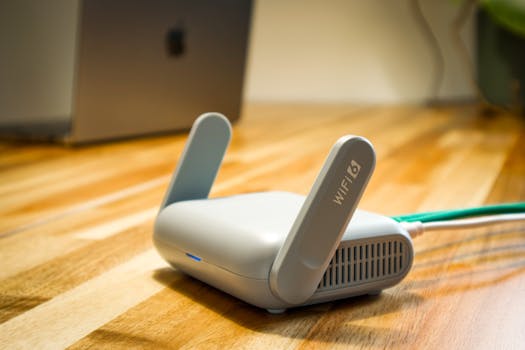 Photo: Pascal 📷 / Pexels
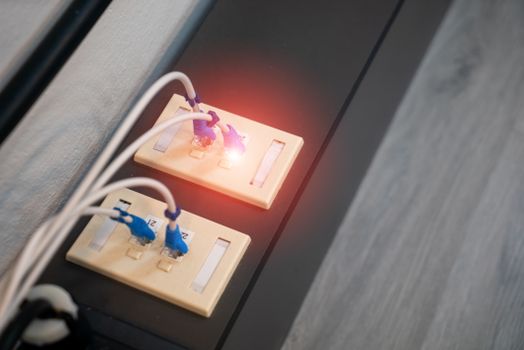 Photo: panumas nikhomkhai / Pexels
 Photo: panumas nikhomkhai / Pexels