✓ USB-C/Thunderbolt 3/4 are crucial for modern Macs.
✓ SSDs offer speed, HDDs offer capacity for less cost.
✓ Compatibility with macOS is essential (pre-formatted or easy formatting).
✓ Portability, ruggedness, and security features vary by model.
✓ Cloud storage isn't a complete replacement for physical backups.
How It Works
1
Identify Your Needs
Determine if you need speed (SSD) or large capacity (HDD). Consider portability, ruggedness, and how often you'll access the data.
2
Check Mac's Ports
Verify your Mac's available ports (Thunderbolt 3/4, USB-C, USB-A). This dictates the best connection type for optimal performance and compatibility.
3
Evaluate Drive Features
Compare read/write speeds, storage size, encryption options, and warranty. Look for features like bus-powering for convenience.
4
Format for macOS
Upon purchase, ensure the drive is formatted for macOS (APFS or HFS+). Most drives are easy to reformat using Disk Utility.
Understanding Your Mac's Storage Needs: Why an External Drive is Essential
Photo: Avinash Kumar / Pexels
Even the most generous internal storage on a Mac can feel cramped over time. From high-resolution photos and 4K video projects to extensive music libraries and burgeoning application installations, digital life expands rapidly. This is where an external hard drive becomes not just a convenience, but an absolute necessity for any serious Mac user. It's more than just offloading files; it’s about optimizing performance, ensuring data security, and expanding your creative workspace without breaking the bank on internal upgrades. Many Mac users, especially those with base model MacBook Airs or MacBook Pros, quickly realize the limitations of their onboard SSD. While internal SSDs are incredibly fast, their capacity often pales in comparison to the terabytes of data many professionals and enthusiasts accumulate. An external drive provides a flexible solution, allowing you to store archives, create dedicated project drives, or even run virtual machines without impacting your primary system's speed.
Beyond simple storage expansion, external drives are the cornerstone of a robust backup strategy. Time Machine, Apple's built-in backup utility, works seamlessly with external drives, providing an automatic, incremental backup of your entire system. This means that if disaster strikes – whether it's a hardware failure, accidental deletion, or even a software glitch – you can restore your Mac to a previous state with minimal data loss. Relying solely on cloud storage, while convenient, can be slow for large files and may incur ongoing subscription costs that add up. A physical external drive offers immediate access to your data, often without an internet connection, and provides a tangible sense of security for your most precious digital assets.
For creative professionals, the right external drive can significantly enhance workflow. Editing large video files directly from a fast external SSD, for instance, can be just as efficient as working from an internal drive, freeing up valuable internal space for your operating system and active applications. Musicians can store vast sample libraries, photographers can manage massive RAW image collections, and developers can keep multiple virtual environments at the ready. The versatility of external storage means you can tailor your setup to your specific needs, whether that's a rugged drive for field work, a high-capacity desktop drive for archiving, or a lightning-fast portable SSD for daily projects. Understanding these diverse applications is the first step in choosing the best external hard drive for Mac that truly fits your lifestyle and professional demands.
SSD vs. HDD: Choosing the Right Technology for Your Mac
Photo: Markus Spiske / Pexels
When it comes to external storage, the fundamental choice boils down to Solid State Drives (SSDs) and Hard Disk Drives (HDDs). Each technology offers distinct advantages and disadvantages, making the 'best' choice highly dependent on your specific needs, budget, and how you intend to use the drive with your Mac. Understanding these differences is paramount to making an informed decision that you won't regret down the line.
**Solid State Drives (SSDs)**: These drives store data on interconnected flash memory chips, similar to a giant USB stick. The absence of moving parts is their greatest strength.
* **Pros**: SSDs are incredibly fast, offering read and write speeds that can be several times greater than HDDs. This translates to quicker file transfers, faster application loading times, and a more responsive experience when working with large files (e.g., video editing, graphic design). They are also much more durable and resistant to drops and impacts, as there are no delicate platters or read/write heads to damage. Their compact size, silent operation, and lower power consumption (often bus-powered directly from your Mac) make them ideal for portability.
* **Cons**: The primary drawback of SSDs is their cost per gigabyte, which is significantly higher than HDDs. While prices have been steadily decreasing, a 1TB external SSD will still cost considerably more than a 1TB external HDD. This makes them less economical for vast archival storage needs.
**Hard Disk Drives (HDDs)**: These are traditional storage devices that use spinning platters and a read/write head to store and retrieve data magnetically.
* **Pros**: HDDs excel in terms of cost-effectiveness and raw storage capacity. You can find external HDDs with capacities ranging from 1TB to 18TB or more at a fraction of the price of an equivalent SSD. This makes them ideal for backing up entire systems, archiving large media libraries, or storing data where access speed isn't the absolute top priority.
* **Cons**: The mechanical nature of HDDs makes them slower than SSDs, particularly for random read/write operations. They are also more fragile and susceptible to damage from drops or vibrations, as the moving parts can be easily misaligned. HDDs can be noisier due to the spinning platters and may require an external power source for larger desktop models. Their physical size is generally larger than portable SSDs.
**Which to choose?** If speed, durability, and portability are your top priorities – perhaps for a drive you carry daily for active projects, or for editing media directly – an external SSD is the clear winner. If you need vast amounts of storage for backups, archiving, or less frequently accessed files, and budget is a primary concern, then a high-capacity external HDD is the more practical and economical choice. Many Mac users find a hybrid approach effective: a fast, smaller SSD for active projects and a larger, more affordable HDD for Time Machine backups and long-term archiving. Your workflow and budget will ultimately guide your decision between these two fundamental technologies.
Connectivity and Compatibility: Ensuring Seamless Integration with Your Mac
Photo: Eric Feng / Pexels
The best external hard drive for Mac isn't just about speed and capacity; it's also about flawless integration with your Apple ecosystem. This largely hinges on the connectivity options available on both your Mac and the external drive. Modern Macs, particularly those from 2016 onwards, have largely transitioned to USB-C and Thunderbolt ports, which offer superior performance and versatility compared to older USB-A standards. Understanding these connections is crucial to avoid bottlenecks and ensure you get the most out of your investment.
**Thunderbolt 3 and Thunderbolt 4**: These are the gold standard for high-performance external storage on modern Macs. Offering blazing-fast speeds (up to 40Gbps), Thunderbolt ports can handle multiple high-bandwidth devices simultaneously, including displays, external GPUs, and incredibly fast SSDs. If your Mac has Thunderbolt ports (often identified by a small lightning bolt icon next to the USB-C connector), investing in a Thunderbolt-compatible external drive will provide the absolute best performance, especially for professional workflows involving large file transfers or direct media editing. Thunderbolt drives are generally backward compatible with USB-C, but you won't get the full Thunderbolt speed unless both devices support it.
**USB-C (USB 3.1 Gen 2, USB 3.2 Gen 2x2)**: USB-C is a universal connector that has replaced older USB-A and micro-USB ports on many devices. While it shares the same physical connector as Thunderbolt, standard USB-C offers varying speeds. USB 3.1 Gen 2 (now often called USB 3.2 Gen 2) offers speeds up to 10Gbps, which is plenty fast for most external SSDs and HDDs. Newer USB 3.2 Gen 2x2 can reach 20Gbps, though this is less common. USB-C drives are highly versatile and widely compatible across many devices, including older Macs with adapters. Always check the specific USB standard (e.g., USB 3.2 Gen 2) to understand the maximum potential speed of the drive.
**USB-A (USB 3.0/3.1 Gen 1)**: Older Macs still feature USB-A ports. While slower (up to 5Gbps for USB 3.0/3.1 Gen 1), they are still perfectly adequate for many external HDDs and even some slower SSDs, especially for backup purposes. If your Mac only has USB-A ports, you'll need a drive with a USB-A connector or a USB-C drive with a USB-C to USB-A adapter.
**Pre-formatting for macOS**: Another critical aspect of compatibility is how the drive is formatted. Many external drives come pre-formatted for Windows (NTFS). While your Mac can read NTFS drives, it generally cannot write to them without third-party software. For seamless operation, especially with Time Machine, you'll want to format your drive for macOS. The recommended file systems are APFS (Apple File System) for SSDs and HFS+ (Mac OS Extended) for HDDs. This is a straightforward process using macOS's built-in Disk Utility. Always back up any data on a new drive before reformatting, as it will erase everything. By paying close attention to these connectivity and formatting details, you ensure your chosen external drive integrates perfectly and performs optimally with your Mac, making it a truly valuable addition to your digital toolkit. For more on optimizing your Mac, check out our guide on essential Mac accessories.
Top Picks for the Best External Hard Drive for Mac & Common Mistakes to Avoid
Photo: Luis Quintero / Pexels
Navigating the vast market of external hard drives can be daunting, but with the right information, you can pinpoint the perfect solution for your Mac. Here are some top recommendations catering to different needs, followed by crucial mistakes to sidestep:
**Top Picks for Mac Users:**
* **For Speed & Portability (Professional Use): Samsung T7 Shield Portable SSD**
* **Why it's great:** Blazing fast USB 3.2 Gen 2 speeds (up to 1,050 MB/s read, 1,000 MB/s write), IP65 water and dust resistance, and drop protection make it ideal for creative professionals on the go. Compact and bus-powered, it connects easily via USB-C to modern Macs.
* **For Ultimate Performance (Thunderbolt Users): OWC Envoy Pro FX**
* **Why it's great:** A true Thunderbolt 3/4 and USB-C compatible SSD, offering incredible speeds up to 2800 MB/s. It's rugged, bus-powered, and built for demanding workflows like 8K video editing. A premium choice for those needing uncompromising speed.
* **For High Capacity & Value (Time Machine & Archiving): Western Digital My Book/Elements Desktop HDD**
* **Why it's great:** These desktop HDDs offer excellent cost-per-terabyte value, ranging from 4TB to 18TB+. Perfect for Time Machine backups, storing large media libraries, and archiving. While slower than SSDs, their massive capacity makes them indispensable for long-term storage. Requires external power.
* **For Ruggedness & Field Work: LaCie Rugged SSD Pro**
* **Why it's great:** Known for its iconic orange bumper, this drive offers extreme durability (drop, crush, and water resistance). Featuring Thunderbolt 3 and USB 3.1 Gen 2 connectivity, it combines speed with bulletproof reliability for harsh environments.
**Common Mistakes to Avoid When Buying an External Hard Drive for Mac:**
1. **Ignoring Port Compatibility:** Don't buy a Thunderbolt drive if your Mac only has USB-A, or vice-versa. Always match the drive's connection type to your Mac's available ports for optimal performance.
2. **Forgetting to Reformat:** Many drives come formatted for Windows (NTFS). If you don't reformat it to APFS or HFS+ for macOS, you won't be able to write files to it or use it with Time Machine.
3. **Underestimating Capacity Needs:** It's often better to buy slightly more storage than you think you'll need. Files grow quickly, and upgrading later can be inconvenient or more expensive.
4. **Prioritizing Price Over Performance (or vice-versa):** A cheap, slow HDD won't cut it for video editing, just as an expensive, fast SSD is overkill for simple document backups. Balance your budget with your actual usage requirements.
5. **Neglecting Backup Strategies:** An external drive is excellent for backups, but it's not a backup in itself if it's your *only* copy. Consider a 3-2-1 backup strategy (3 copies, 2 different media types, 1 offsite) for ultimate data safety.
6. **Ignoring Read/Write Speeds:** Especially for SSDs, look beyond just the storage capacity. Read and write speeds are critical indicators of real-world performance. A slower SSD might not offer a significant advantage over a fast HDD for certain tasks.
By considering these top picks and avoiding common pitfalls, you're well on your way to selecting the ideal external hard drive that perfectly complements your Mac.
Comparison
Feature
Samsung T7 Shield (Best Portable SSD)
OWC Envoy Pro FX (Best Thunderbolt SSD)
WD My Book (Best Desktop HDD)
Capacity Range
1TB - 4TB
240GB - 4TB
4TB - 18TB
Interface
USB 3.2 Gen 2 (USB-C)
Thunderbolt 3/4, USB 3.2 Gen 2
USB 3.0 (USB-A)
Max Read Speed
1,050 MB/s
2,800 MB/s
~250 MB/s
Max Write Speed
1,000 MB/s
2,800 MB/s
~250 MB/s
Durability
IP65, Drop Resistant
Rugged, Drop Resistant
Standard (Desktop)
Power Source
Bus-powered
Bus-powered
External AC Adapter
Portability
Excellent
Excellent
Limited (Desktop)
Encryption
✓ (Hardware)
✓ (Software)
✓ (Software)
What Readers Say
★★★★★
"The Samsung T7 Shield is the best external hard drive for my Mac. It's incredibly fast for my video projects and I don't worry about it getting wet on shoots. File transfers are instant, making my workflow so much smoother."
Sarah L. · Austin, TX
★★★★★
"As a photographer, storage is crucial. My OWC Envoy Pro FX transformed my editing process on my MacBook Pro. The Thunderbolt speeds are unreal, and it handles huge RAW files without a hitch. Absolutely worth the investment for professionals."
Mark D. · Seattle, WA
★★★★★
"I needed a reliable backup solution, and the WD My Book delivered. It's been running Time Machine flawlessly for over a year, storing all my family photos and documents. Knowing everything is safe gives me such peace of mind."
Emily C. · Denver, CO
★★★★★
"The LaCie Rugged SSD Pro is fantastic for its durability and speed, though it's a bit pricey. I appreciate knowing my data is safe when I'm traveling for work, and the performance is excellent for on-the-go editing. Just wish it were a tad more affordable."
David R. · New York, NY
★★★★★
"For my music production setup, the best external hard drive for Mac meant a fast SSD. I run my sample libraries off a Crucial X8, and it's been perfect. Zero latency, quiet, and fits right in my backpack."
Jessica M. · Los Angeles, CA
Frequently Asked Questions
What is the best external hard drive for Mac for Time Machine backups?
For Time Machine backups, a high-capacity external HDD like the Western Digital My Book or Elements Desktop series is often the best choice. They offer excellent cost per terabyte, providing ample space for incremental backups over many years. While not as fast as SSDs, Time Machine backups typically run in the background, making raw speed less critical than sheer capacity and reliability. Ensure it's formatted to APFS or HFS+ for optimal compatibility.
Do I need to format an external hard drive for my Mac?
Yes, it is highly recommended. Most external drives come pre-formatted for Windows (NTFS), which Macs can read but not write to without third-party software. To use the drive seamlessly with macOS, especially for Time Machine, you should format it using Disk Utility to APFS (for SSDs) or HFS+ (Mac OS Extended, for HDDs). This ensures full read/write capability and optimal performance within the Apple ecosystem.
How do I connect an external hard drive to my Mac?
Connecting an external hard drive to your Mac is usually straightforward. If your Mac has USB-C or Thunderbolt 3/4 ports, you'll use a drive with a matching USB-C or Thunderbolt cable. Simply plug one end into the drive and the other into your Mac. If your Mac has older USB-A ports, you'll need a drive with a USB-A connector or a USB-C to USB-A adapter. Most modern portable drives are bus-powered, meaning they draw power directly from your Mac through the data cable, while larger desktop HDDs may require an external power adapter.
Is an external SSD worth the extra cost over an HDD for Mac users?
The value of an external SSD over an HDD largely depends on your usage. If you prioritize speed for tasks like video editing, running virtual machines, or quickly transferring large files, an SSD is absolutely worth the extra cost. Its durability and portability are also significant advantages. However, if your primary need is vast storage for backups and archiving where access speed isn't critical, an HDD offers significantly more capacity for less money, making it a more cost-effective solution for those specific use cases.
Can I use an external hard drive to run applications or games on my Mac?
Yes, you absolutely can, especially with a fast external SSD. Running applications or games from an external SSD connected via Thunderbolt or fast USB-C can provide a near-native experience, often comparable to running them from your internal drive. This is an excellent way to offload large applications or game libraries from your Mac's internal storage, freeing up space for your operating system and other critical files. Running them from an external HDD is also possible but will be noticeably slower.
Who should consider a rugged external hard drive for their Mac?
A rugged external hard drive is ideal for anyone who frequently travels with their Mac and needs to protect their data from physical damage. This includes photographers and videographers shooting on location, field researchers, outdoor enthusiasts, or anyone prone to accidental drops or spills. Brands like LaCie's Rugged series offer enhanced resistance to drops, dust, and water, providing peace of mind in less-than-ideal conditions.
Are there any security concerns with using external hard drives?
While generally safe, external hard drives can pose security risks if lost or stolen, as they contain your data. To mitigate this, consider drives with built-in hardware encryption or use macOS's FileVault to encrypt the drive. Always eject the drive properly before disconnecting to prevent data corruption. Regularly backing up your external drive, especially if it holds critical data, is also a crucial security measure against drive failure.
What are the future trends in external storage for Macs?
Future trends for external storage for Macs point towards even faster, higher-capacity, and more compact solutions. Expect continued advancements in Thunderbolt and USB standards, leading to drives with even higher read/write speeds. Increased adoption of NVMe SSDs in external enclosures will become standard, pushing performance boundaries. We'll also likely see more innovative form factors, enhanced ruggedness, and potentially greater integration with cloud services for hybrid storage solutions, all while maintaining Apple's focus on seamless user experience.
Choosing the best external hard drive for Mac is a critical decision that impacts your workflow, data security, and creative potential. By understanding your specific needs, evaluating the right technology, and prioritizing seamless connectivity, you can empower your Mac with the storage it deserves. Don't let limited space hold you back – invest in the perfect external drive today and unlock a world of possibilities for your digital life.

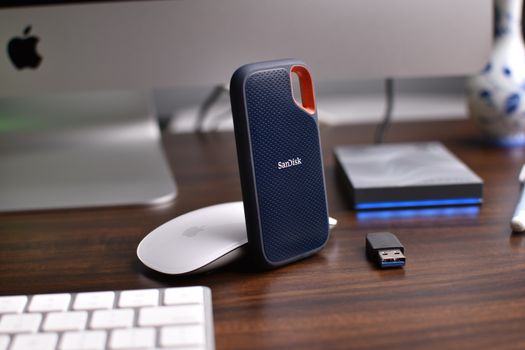 Photo: Avinash Kumar / Pexels
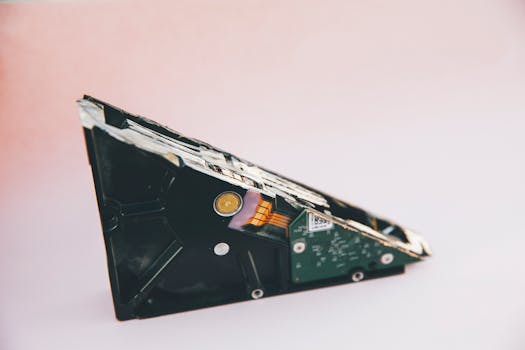 Photo: Markus Spiske / Pexels
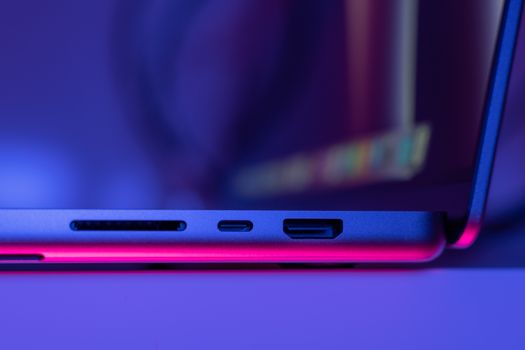 Photo: Eric Feng / Pexels
 Photo: Luis Quintero / Pexels