✓ SSDs offer superior speed and durability over HDDs for Mac users.
✓ Thunderbolt 3/4 and USB 3.2 Gen 2x2 provide the fastest transfer speeds.
✓ Encryption and robust casing are crucial for data security and physical protection.
✓ Compatibility with macOS (APFS, HFS+) is essential for optimal performance and Time Machine.
How It Works
1
Identify Your Needs
Determine if you need speed for editing, capacity for backups, or portability for travel. This will guide your choice between SSDs and HDDs.
2
Choose Connection Type
Prioritize Thunderbolt for maximum speed with newer Macs, or USB-C/3.2 for broader compatibility. Ensure your Mac has the necessary ports.
3
Consider Capacity & Type
Select a storage size that comfortably exceeds your current needs. Decide between solid-state drives (SSD) for speed/durability or hard disk drives (HDD) for budget-friendly bulk storage.
4
Format for macOS
Once acquired, format your new drive using Disk Utility to APFS (for SSDs) or HFS+ (for HDDs) to ensure optimal performance and seamless integration with macOS features like Time Machine.
Understanding Your Mac's Storage Needs
Photo: Кирилл Абрамов / Pexels
For any Mac user, whether you're a creative professional dealing with massive video files, a student juggling countless documents, or just someone looking to back up precious memories, external storage isn't just a luxury—it's a necessity. The internal storage on most Macs, while blazingly fast, can quickly become a bottleneck, especially with the ever-increasing size of applications, operating system updates, and user-generated content. Understanding your specific storage needs is the first crucial step in selecting the best external hard drive for Mac.
Consider your primary use case: Are you looking for a drive to offload large media libraries, ensuring your internal SSD remains free for macOS and frequently used applications? Or perhaps you need a super-fast drive to run virtual machines, edit 4K video directly, or store a massive photo catalog that demands quick access. Maybe your priority is a reliable, robust solution for Time Machine backups, safeguarding your entire system against data loss. Each of these scenarios dictates a different set of requirements for capacity, speed, and durability. For instance, a drive for archival storage might prioritize cost per gigabyte and sheer capacity, often leading you towards traditional hard disk drives (HDDs). In contrast, a drive for active video editing or running demanding applications will undeniably benefit from the speed and responsiveness of a solid-state drive (SSD).
Beyond just capacity and speed, think about portability. Do you need a drive that can easily slip into a backpack for on-the-go work, or will it mostly live on your desk connected to an iMac? Bus-powered drives (powered directly by your Mac's USB or Thunderbolt port) offer maximum portability, while drives requiring an external power adapter typically offer higher capacities and sometimes faster speeds, though at the cost of mobility. Furthermore, the physical resilience of the drive can be a significant factor if you frequently travel or work in less-than-pristine environments. Drives with ruggedized casings and drop protection can be invaluable for field photographers or adventurous professionals.
Finally, integration with the Apple ecosystem is paramount. You want a drive that not only works seamlessly with macOS but also takes advantage of its features. This includes proper formatting for APFS (Apple File System) for SSDs or HFS+ (Mac OS Extended) for HDDs, which allows for efficient data handling and compatibility with Time Machine. The right external drive should feel like a natural extension of your Mac, not a cumbersome add-on. By carefully assessing these factors, you can narrow down the vast array of options and identify the storage solution that truly complements your Mac experience. For more insights on general storage solutions, explore our guide on choosing data storage devices.
SSD vs. HDD: Which is Best for Your Mac?
Photo: Andrey Matveev / Pexels
The fundamental choice when selecting the best external hard drive for Mac often boils down to Solid State Drive (SSD) or Hard Disk Drive (HDD). Each technology offers distinct advantages and disadvantages, making the 'best' choice highly dependent on your specific needs and budget. Understanding these differences is key to making an informed decision.
**Solid State Drives (SSDs)** are the clear winner when it comes to speed. Unlike HDDs, SSDs have no moving parts; they store data on interconnected flash memory chips. This absence of mechanical components translates into significantly faster read and write speeds, often reaching hundreds or even thousands of megabytes per second, especially with NVMe-based SSDs connected via Thunderbolt. For Mac users involved in tasks like 4K/8K video editing, large photo library management, running virtual machines, or needing to boot an operating system from an external drive, an SSD is almost always the superior choice. Their speed dramatically reduces loading times, rendering times, and file transfer durations, boosting productivity. Furthermore, SSDs are more durable and resistant to physical shock, as there are no platters to scratch or read/write heads to damage if dropped. They are also lighter, more compact, and consume less power, making them ideal for portability and extending laptop battery life. The primary drawback of SSDs is their higher cost per gigabyte compared to HDDs, meaning you'll get less storage for your money.
**Hard Disk Drives (HDDs)**, on the other hand, offer a much more cost-effective solution for large-capacity storage. HDDs store data on spinning platters accessed by read/write heads. While their mechanical nature makes them slower and more susceptible to damage from drops, they excel in providing vast amounts of storage at a fraction of the cost of an equivalent SSD. For Mac users who primarily need archival storage, Time Machine backups for an entire system, or a place to store large media collections (movies, music) that don't require constant, high-speed access, HDDs are an excellent choice. They are available in capacities ranging from 1TB to 18TB or even more, making them perfect for consolidating vast amounts of data. However, their slower speeds can be noticeable when transferring very large files or accessing frequently used data. Their physical size and weight also tend to be greater than SSDs, and they typically require an external power source for larger desktop models.
In summary, if speed, durability, and portability are your top priorities, and your budget allows, an external SSD is the best external hard drive for Mac. If you need maximum storage capacity for backups and archival purposes at the lowest possible cost, and speed is less critical, an external HDD will serve you well. Many users find a hybrid approach beneficial, using a fast, smaller SSD for active projects and a larger, more affordable HDD for long-term backups.
Connectivity Matters: Thunderbolt, USB-C, and More
Photo: ready made / Pexels
The interface you choose for your external hard drive is just as critical as the drive type itself, especially for Mac users who often prioritize speed and seamless integration. Apple has historically led the charge in adopting cutting-edge connectivity standards, meaning your Mac likely supports some of the fastest options available. Understanding the nuances of Thunderbolt, USB-C, and other ports will help you select the best external hard drive for Mac that maximizes performance.
**Thunderbolt (Thunderbolt 3/4)**: This is the pinnacle of external drive connectivity for modern Macs. Thunderbolt 3 and 4 ports utilize the USB-C physical connector but offer vastly superior bandwidth, up to 40 Gbps. This incredible speed is essential for high-performance SSDs, allowing them to reach their full potential, especially for demanding tasks like 4K/8K video editing, running virtual machines, or powering multiple high-resolution displays through a single port. Many MacBooks and iMacs from late 2016 onwards feature Thunderbolt 3 or 4. Drives designed for Thunderbolt are often premium-priced but deliver unparalleled performance and can daisy-chain multiple devices. If your workflow demands the absolute fastest transfer speeds, a Thunderbolt-enabled external SSD is your go-to.
**USB-C (USB 3.2 Gen 2x2, Gen 2, Gen 1)**: The USB-C connector itself is versatile and reversible, making it incredibly convenient. However, 'USB-C' refers to the physical port, not necessarily the underlying USB standard. The actual speed depends on the USB generation:
* **USB 3.2 Gen 2x2 (SuperSpeed+ USB 20Gbps)**: This is the fastest USB standard currently available, offering up to 20 Gbps. While not as common as Thunderbolt, some newer Macs and external drives support it, providing excellent speeds for SSDs.
* **USB 3.2 Gen 2 (SuperSpeed+ USB 10Gbps)**: Offering up to 10 Gbps, this is a very common and highly capable standard found on many modern Macs and external drives. It's perfectly adequate for most external SSDs and provides a significant speed boost over older USB standards.
* **USB 3.2 Gen 1 (SuperSpeed USB 5Gbps)**: Formerly known as USB 3.0, this standard provides up to 5 Gbps. It's still common and offers good performance for most HDDs and many SSDs, especially for general file transfers and backups. Most Macs from 2012 onwards support at least this standard.
It's crucial to check the specific USB standard supported by both your Mac and the external drive to ensure you get the advertised speeds. A USB 3.2 Gen 2 drive connected to a USB 3.2 Gen 1 port will only operate at Gen 1 speeds. Converters and docks can help bridge compatibility gaps, but direct connection is always best for performance.
**Older USB Standards (USB 2.0)**: While still present on some older peripherals, USB 2.0 (480 Mbps) is significantly slower and should be avoided for primary external storage due to its bottlenecking effect on data transfer. Ensure any external drive you consider is at least USB 3.0 compatible.
When choosing, consider your Mac's ports. Newer Macs primarily feature Thunderbolt 3/4 ports (which are also compatible with USB-C devices). Older Macs might have USB-A ports, requiring a USB-A to USB-C adapter or a drive with a compatible cable. The right connectivity ensures that your chosen storage solution performs optimally and integrates seamlessly with your Apple workflow. For more technical deep dives, check out this resource on understanding data transfer protocols.
Top Picks for the Best External Hard Drive for Mac
Photo: Luis Quintero / Pexels
Navigating the crowded market of external hard drives can be daunting, but based on the criteria we've discussed—speed, capacity, durability, and connectivity—we can identify some standout options that consistently rank as the best external hard drive for Mac users. These recommendations span different budgets and use cases, ensuring there's a perfect match for everyone.
**1. For Unmatched Speed and Performance: Samsung T7 Shield Portable SSD (or Samsung T9)**
* **Why it's great:** The Samsung T7 Shield (and its faster sibling, the T9) is a perennial favorite for Mac users. It offers blazing-fast USB 3.2 Gen 2 (10 Gbps) speeds, making it ideal for editing large files directly, running virtual machines, or quickly transferring massive data sets. The 'Shield' version adds IP65 dust and water resistance and robust drop protection, making it perfect for creative professionals on the go. The T9 offers even faster 20Gbps speeds, pushing USB-C to its limits. Its compact, lightweight design and bus-powered operation add to its appeal. It comes pre-formatted for exFAT, making it compatible out-of-the-box with both macOS and Windows, though reformatting to APFS is recommended for optimal Mac performance and Time Machine.
**2. For Professional-Grade Reliability and Thunderbolt Speed: OWC Envoy Pro FX**
* **Why it's great:** OWC (Other World Computing) is a brand synonymous with Mac compatibility and quality. The Envoy Pro FX is a premium, ruggedized SSD that supports both Thunderbolt 3 (40 Gbps) and USB 3.2 Gen 2 (10 Gbps), offering incredible flexibility and future-proofing. It’s built like a tank, making it suitable for field use, and its performance is top-tier, leveraging NVMe SSD technology. While it comes at a higher price point, its speed, durability, and OWC's reputation for Mac-centric products make it an excellent investment for professionals who cannot compromise on performance or data integrity.
**3. For Affordable, High-Capacity Backups: Western Digital My Passport for Mac (HDD)**
* **Why it's great:** If your primary need is extensive storage for Time Machine backups, archival purposes, or a large media library, and budget is a key consideration, the WD My Passport for Mac HDD is an excellent choice. It offers capacities up to 5TB, is bus-powered, and comes pre-formatted for macOS (HFS+), making it ready for Time Machine right out of the box. While it uses USB 3.0 (5 Gbps), which is slower than SSDs, it provides ample speed for traditional backups and file storage at a very attractive price per gigabyte. Its compact design is also quite portable for an HDD.
**4. For Desktop Power Users & RAID: G-Technology G-RAID with Thunderbolt 3**
* **Why it's great:** For users who need extreme capacity, redundancy, and performance for professional workflows like multi-stream 4K/8K video editing or large-scale data archiving, the G-RAID with Thunderbolt 3 is a powerhouse. These systems typically feature two enterprise-class HDDs in a RAID 0 or RAID 1 configuration, offering either maximum speed (RAID 0) or data redundancy (RAID 1). With dual Thunderbolt 3 ports, they can be daisy-chained and often include additional ports like HDMI for monitors or USB-C for other peripherals, turning them into powerful desktop hubs. While large and requiring external power, they represent the ultimate in high-capacity, high-performance desktop storage for Mac professionals.
When making your final selection, always read recent reviews, check compatibility with your specific Mac model, and consider warranties. The best external hard drive for Mac is ultimately the one that perfectly aligns with your individual workflow and budget.
Essential Tips for Mac External Drive Management
Once you've chosen the best external hard drive for Mac, proper management is key to ensuring its longevity, performance, and the safety of your data. These tips will help you integrate your new storage seamlessly into your macOS workflow.
* **Proper Formatting is Crucial:** For optimal performance and compatibility with macOS features like Time Machine, your drive needs to be formatted correctly. For Solid State Drives (SSDs), the recommended format is **APFS (Apple File System)**. It's optimized for flash storage, offering features like snapshots and improved data integrity. For traditional Hard Disk Drives (HDDs), **HFS+ (Mac OS Extended)** is still a robust choice, though APFS can also be used if desired. You can format your drive using Disk Utility, found in Applications > Utilities. Be aware that formatting will erase all data on the drive, so do this before transferring any important files.
* **Regular Backups with Time Machine:** Apple's built-in Time Machine is an incredibly powerful and easy-to-use backup solution. Designate your external drive as a Time Machine backup disk, and it will automatically create incremental backups of your entire system. This means you can restore individual files, older versions of documents, or even your entire Mac to a previous state. Make sure your Time Machine drive has at least 2-3 times the capacity of your Mac's internal drive for comprehensive backups.
* **Safe Ejection is Non-Negotiable:** Always safely eject your external drive before disconnecting it. Dragging the drive's icon to the Trash (which changes to an eject symbol), right-clicking and selecting 'Eject', or using the 'Eject' button in Finder will unmount the drive safely. Unplugging a drive without ejecting it can lead to data corruption, especially if files are being written or read at the time.
* **Keep Firmware Updated:** Periodically check the manufacturer's website for firmware updates for your external drive. Firmware updates can improve performance, fix bugs, and enhance compatibility with new macOS versions. This is particularly relevant for SSDs and Thunderbolt enclosures.
* **Consider Encryption for Sensitive Data:** If your external drive contains sensitive information, enable encryption. macOS offers built-in encryption options when formatting a drive (APFS Encrypted or Mac OS Extended (Journaled, Encrypted)). This adds a layer of security, requiring a password to access the drive's contents. For truly critical data, consider a drive with hardware encryption.
* **Organize Your Files:** Just like your internal drive, keeping your external drive organized makes it easier to find files and manage storage. Create logical folder structures for different types of content (e.g., 'Photos Library', 'Video Projects', 'Time Machine Backups').
* **Monitor Drive Health:** While macOS doesn't have a built-in tool for detailed drive health monitoring, third-party utilities can provide SMART data (Self-Monitoring, Analysis and Reporting Technology) for HDDs and some SSDs. Paying attention to any unusual noises (for HDDs) or performance dips can be early warning signs of potential failure. Replacing a failing drive proactively can save you from catastrophic data loss. For further reading, consult resources on data backup strategies.
By following these essential tips, you can ensure your external hard drive remains a reliable and efficient component of your Mac setup, safeguarding your data and enhancing your productivity.
Comparison
Feature
Samsung T7 Shield (SSD)
WD My Passport for Mac (HDD)
OWC Envoy Pro FX (Thunderbolt SSD)
Type
Portable SSD
Portable HDD
Rugged NVMe SSD
Max Speed
1050 MB/s (USB 3.2 Gen 2)
130 MB/s (USB 3.0)
2800 MB/s (Thunderbolt 3)
Connectivity
USB-C (USB 3.2 Gen 2)
USB-A (USB 3.0)
Thunderbolt 3 / USB-C
Durability
IP65, 9.8ft Drop
Standard
MIL-STD810G, IP67
Bus Powered
✓
✓
✓
Max Capacity
4TB
5TB
8TB
Best Use Case
Fast media editing, general storage
Time Machine, large backups
Pro video editing, demanding workflows
What Our Readers Say
5★★★★★
"The Samsung T7 Shield is the best external hard drive for Mac I've ever owned. Transferring my entire Lightroom catalog took minutes, not hours. The rugged design gives me peace of mind when I'm shooting on location, knowing my data is safe."
Alex P.Los Angeles, CA
5★★★★★
"My MacBook Pro was constantly full. I grabbed a WD My Passport for Mac, and it's been a lifesaver for Time Machine backups. It's so easy to use and provides all the space I need without breaking the bank."
Sarah L.New York, NY
5★★★★★
"As a video editor, speed is everything. The OWC Envoy Pro FX connected via Thunderbolt is simply incredible. I can edit 8K footage directly from the drive with zero lag, which has dramatically improved my workflow efficiency."
Mark D.Austin, TX
4★★★★☆
"I chose a Seagate Portable SSD for my Mac, and it's mostly fantastic. It's fast and compact, perfect for carrying project files. My only minor gripe is that the included cable is a bit short, but easily replaceable."
Emily R.Seattle, WA
5★★★★★
"I needed a reliable solution for archiving old client projects. The G-Technology G-RAID with Thunderbolt 3 has been perfect. It's robust, offers huge capacity, and gives me the redundancy I need for peace of mind."
David G.Miami, FL
Frequently Asked Questions
What is the best external hard drive for Mac for video editing?
For video editing on a Mac, an NVMe SSD connected via Thunderbolt 3 or 4 is highly recommended. Drives like the OWC Envoy Pro FX or high-end Samsung T9 offer the sustained read/write speeds necessary for smooth playback and rendering of high-resolution footage, preventing bottlenecks in your workflow.
Do I need to format an external hard drive for Mac?
Yes, it's highly recommended. While some drives come pre-formatted for exFAT (compatible with both Mac and Windows), formatting to APFS (for SSDs) or HFS+ (for HDDs) using Disk Utility ensures optimal performance, reliability, and full compatibility with macOS features like Time Machine.
How do I set up Time Machine with my new external drive?
Connect your external drive to your Mac. macOS will often prompt you to use it for Time Machine. If not, go to System Settings > General > Time Machine, click 'Add Backup Disk', and select your new drive. macOS will then guide you through the initial setup and begin your first backup.
Are cheaper external HDDs good enough for Mac backups?
Yes, cheaper external HDDs are generally excellent for Mac backups, especially for Time Machine. They offer large capacities at a lower cost per gigabyte compared to SSDs. While slower, backup processes typically run in the background, making speed less critical for this specific use case.
What's the difference between USB-C and Thunderbolt for external drives?
USB-C refers to the physical connector, while Thunderbolt is a data transfer protocol that uses the USB-C connector. Thunderbolt 3/4 offers significantly faster speeds (up to 40 Gbps) and more capabilities (like daisy-chaining and video output) than standard USB-C (which can range from 5 Gbps to 20 Gbps depending on the USB generation). All Thunderbolt ports are USB-C compatible, but not all USB-C ports are Thunderbolt.
Who should prioritize an SSD over an HDD for their Mac?
Anyone needing high-speed data access should prioritize an SSD. This includes creative professionals (video editors, photographers, music producers), developers, users running virtual machines, or anyone who frequently transfers very large files and values speed, durability, and portability above raw storage capacity per dollar.
Is it safe to unplug an external drive without ejecting it first?
No, it is not safe. Unplugging an external drive without properly ejecting it can lead to data corruption or loss, as files might still be in the process of being written or read. Always safely eject your drive through Finder or Disk Utility before disconnecting it.
Will external drives become obsolete with cloud storage?
While cloud storage is convenient, external drives offer distinct advantages that prevent obsolescence. They provide much faster local access, higher security (as data is physically controlled by you), no recurring subscription fees, and are essential for large-scale local backups and professional workflows where internet bandwidth can be a bottleneck.
Choosing the best external hard drive for Mac is a crucial step in optimizing your workflow and protecting your valuable data. By considering your specific needs for speed, capacity, durability, and connectivity, you can confidently select a storage solution that perfectly complements your Apple ecosystem. Don't let storage limitations hold you back – invest in the right external drive today and unlock your Mac's full potential.

 Photo: Cats Coming / Pexels
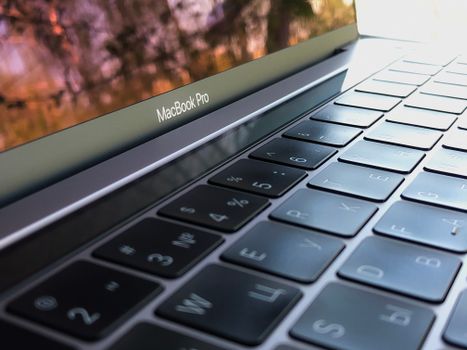 Photo: Кирилл Абрамов / Pexels
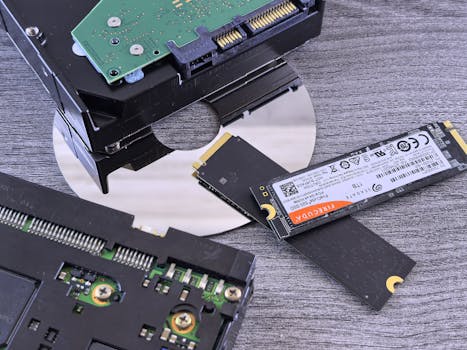 Photo: Andrey Matveev / Pexels
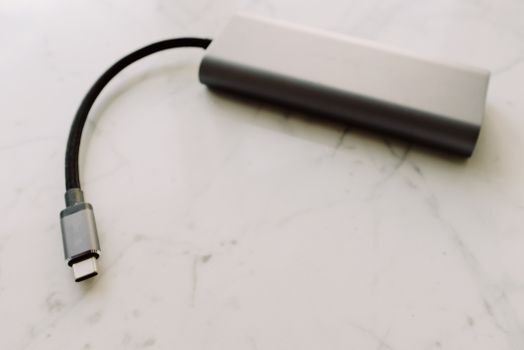 Photo: ready made / Pexels
 Photo: Luis Quintero / Pexels